Navigation menu
hello Guest

Instructor Manual
Where to locate instructor tools
Instructor tools help you manage a course or a section. On the My Library page, look for the course you want to manage and click the Manage button to go to instructor tools.
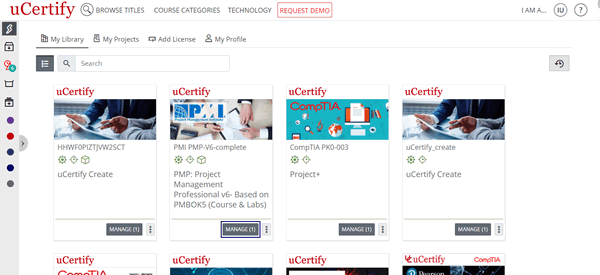
Figure 1.7: My Library Page with Manage Button
To add new section, click the Add new section button.
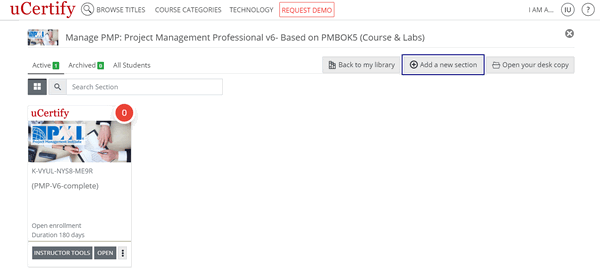
Figure 1.8: Manage Course Page with Add a new section Button
You can Create a New Section, Clone Using Section List, Clone Using Section Key. Provide the other required details and click the Save and manage section button.
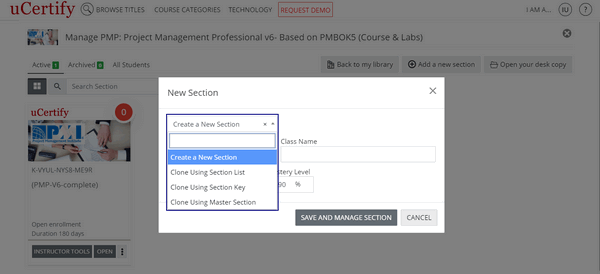
Figure 1.9: Manage Course Page with New Section Modal Box and Section Option Drop-Down
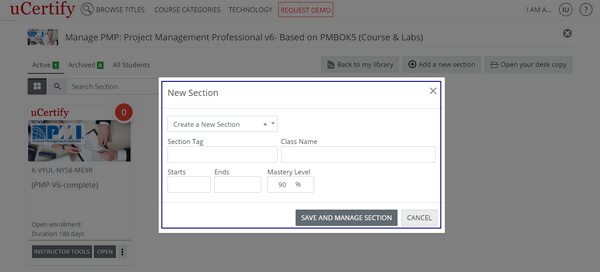
Figure 1.10: Manage Course Page with New Section Modal Box and Save and manage section button
Click the Instructor Tools button.
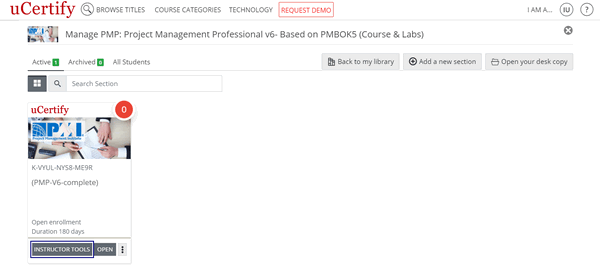
Figure 1.11: Manage Course Page with Instructor Tools Button
On the Dashboard, you will see the following horizontal tabs:
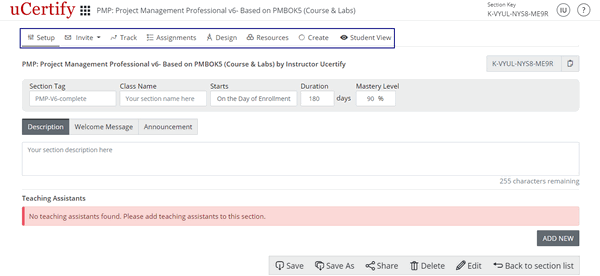
Figure 1.12: Setup Page with Tools Tab
Figure 1.7: My Library Page with Manage Button
To add new section, click the Add new section button.
Figure 1.8: Manage Course Page with Add a new section Button
You can Create a New Section, Clone Using Section List, Clone Using Section Key. Provide the other required details and click the Save and manage section button.
Figure 1.9: Manage Course Page with New Section Modal Box and Section Option Drop-Down
Figure 1.10: Manage Course Page with New Section Modal Box and Save and manage section button
Click the Instructor Tools button.
Figure 1.11: Manage Course Page with Instructor Tools Button
On the Dashboard, you will see the following horizontal tabs:
Figure 1.12: Setup Page with Tools Tab