Navigation menu
hello Guest

Instructor Manual
Providing students with the section key
Each course has a unique 13-digit section key listed on the Setup tab, in the Section Key box. Share this section key with your students.
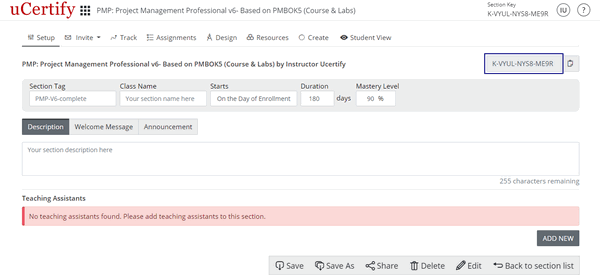
Figure 1.14: Setup Page with Section Key Box
There are two ways students can link with your course/section.
Method 1: Student has a 16-digit Access Code & a URL to submit it.
In this method, students will use their 16-digit Access Code in combination with the instructor keys to be linked with your particular course/section. Students will take the following steps:
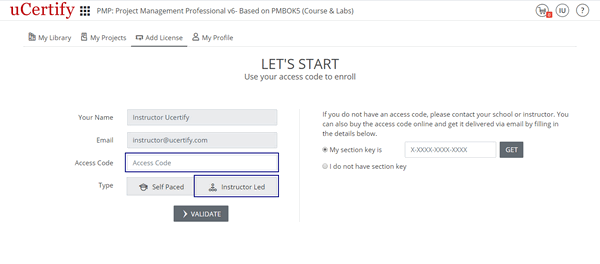
Figure 1.15: Add License Page
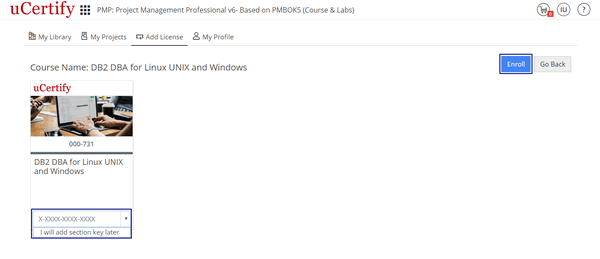
Figure 1.16: Course Enrollment Page in Instructor Led Mode with Section Key Option and Enrollment Button
Method 2: You can add the section key on the Dashboard.
Figure 1.14: Setup Page with Section Key Box
There are two ways students can link with your course/section.
Method 1: Student has a 16-digit Access Code & a URL to submit it.
In this method, students will use their 16-digit Access Code in combination with the instructor keys to be linked with your particular course/section. Students will take the following steps:
Figure 1.15: Add License Page
- The course enrollment page will open. Type the provided section key in the section key box or select the I will add section key later option from the drop-down and click the Enroll button to enroll in the course.
Figure 1.16: Course Enrollment Page in Instructor Led Mode with Section Key Option and Enrollment Button
- You can view the student information by clicking the Track tab.
Method 2: You can add the section key on the Dashboard.